![Bionic-Logo-184x60-white.png]](https://help.bionic-ads.com/hs-fs/hubfs/Bionic-Logo-184x60-white.png?height=40&name=Bionic-Logo-184x60-white.png)
The integration with Walmart Connect will enable you to connect with Walmart Connect via an API to automate the connection process and data delivery.
In this help article, we'll cover the steps on how to connect Walmart Connect:
Setup Walmart Connect Integration
The connection to Walmart Connect is completed during the integration setup process. Walmart Connect requires a separate connection for each advertiser account (think of each as a unique account number), so a separate integration must be created for each one.
If you have an advertiser in Bionic with sub-advertisers, only one Walmart Connect integration is needed for all of them, provided they all use the same Walmart Connect account.
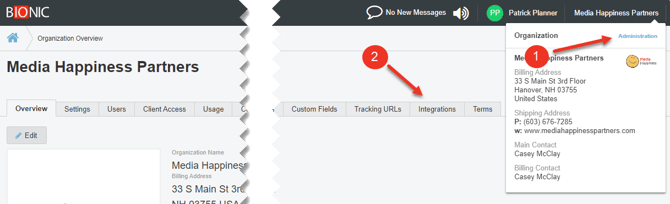
- Go to your Administration section.
- Select the Integrations Tab.
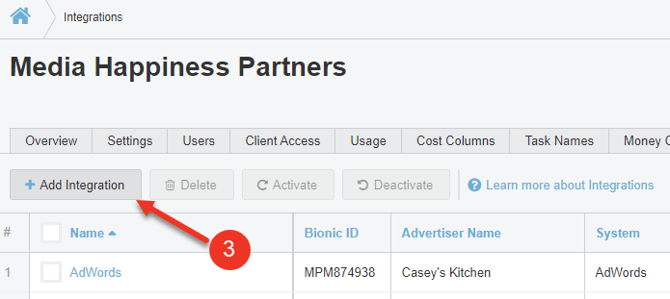
- Click on the Add Integration Button.
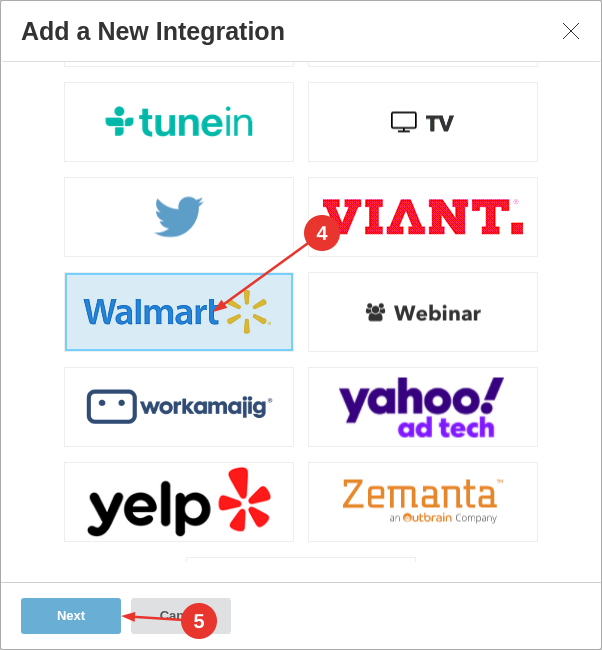
- Select Walmart Connect.
- Press Next.
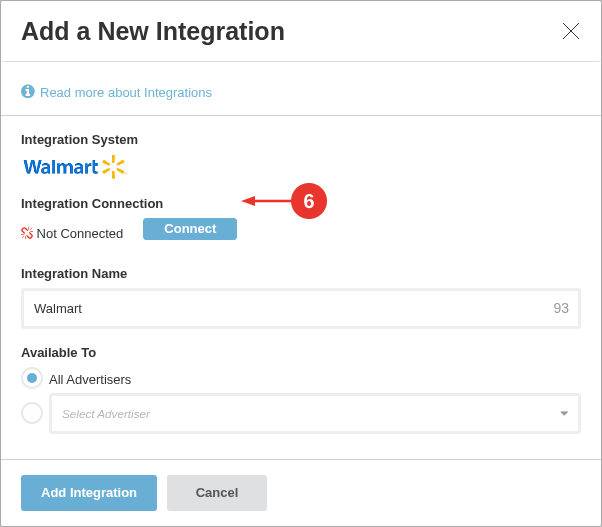
- Press Connect.
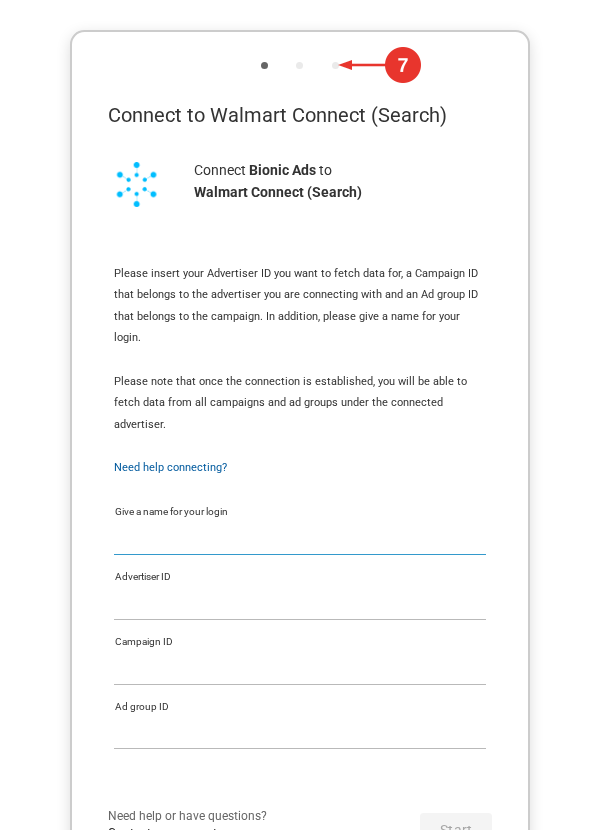
NOTE: Some authorization screens may reference Supermetrics, which powers the integration used by Bionic. - Follow the login prompt for Walmart Connect.
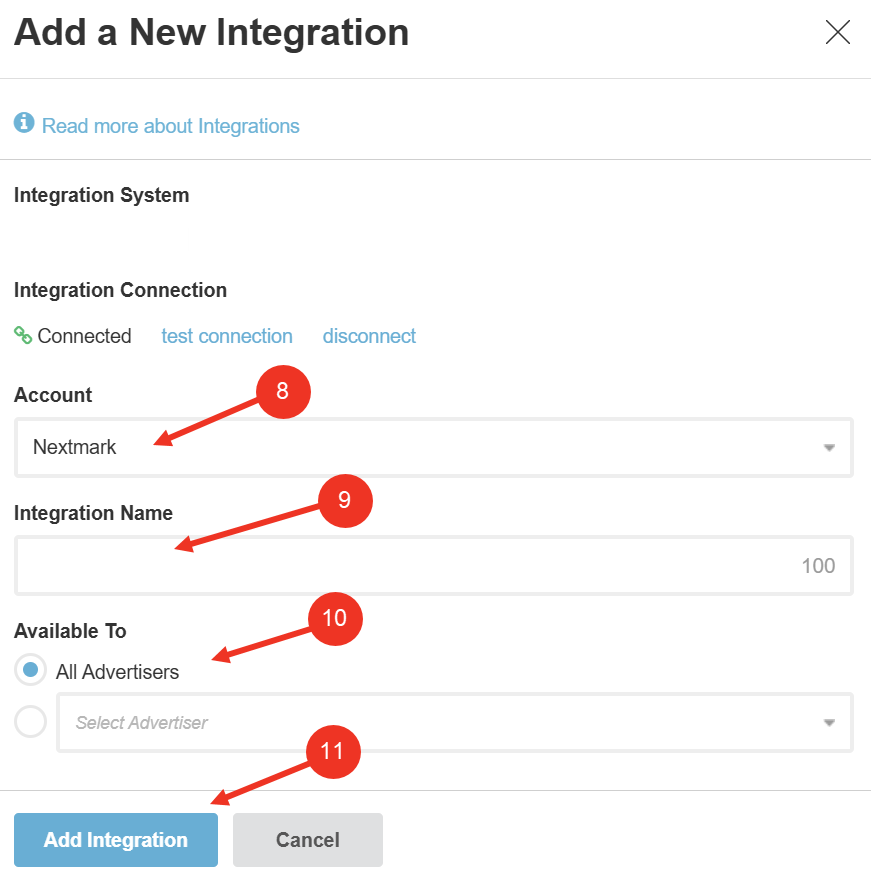
- Select the Advertiser Account to tie the connection with.
- Enter an Integration Name. (NOTE: This should be named clearly to define which advertiser account it is related to.)
- Select the appropriate Available To permission: Select All Advertisers if this integration will be used for more than one advertiser or Select a Specific Advertiser if ONLY THIS advertiser will use this integration.
- Press Add Integration.