![Bionic-Logo-184x60-white.png]](https://help.bionic-ads.com/hs-fs/hubfs/Bionic-Logo-184x60-white.png?height=40&name=Bionic-Logo-184x60-white.png)
In Bionic for Agencies you have the ability to Integrate with Workamajig (WMJ). Once integration is enabled you can export your Bionic orders and bills to Workamajig. If you receive an error that an order failed to export, there are a few things to check to ensure your integration is configured properly. In this article, we'll cover how to fix Workamajig order export issues.
Table of Contents:
- Check Your Connection
- Check Your WMJ Project Number
- Check Your WMJ Vendor ID
- Check Your WMJ Media ID
- Check Your Order Plan Line Data
- Review Workamajig Export Errors
- Re-attempt Order Export
Check Your Workamajig Connection
First you will want to ensure your Workamajig integration is properly connect in Bionic. Here's a help article on how to Connect WMJ Integration.
Check Your Workamajig Project Number
During the initial setup of your integration between Bionic and WMJ you mapped your Bionic campaigns via Workamajig Project Number. In Bionic, you will want to check to ensure a project number was mapped to the campaign and if the project number is correctly associated.
Here is how: Set Project Number on the Campaign Level.
Check Your Workamajig Vendor ID
During the initial setup of your integration between Bionic and WMJ you mapped your Bionic vendors via Workamajig Vendor ID. In Bionic, you will want to check to ensure a Vendor ID was mapped to the Vendor in Bionic and if it is correctly associated.
Here is how: Set Vendor ID on the Vendor Level.
Check Your Workamajig Media ID
During the initial setup of your integration between Bionic and WMJ you mapped your Bionic programs via Workamajig Media ID. In Bionic, you will want to check to ensure a Media ID was mapped to the Program in Bionic and if it is correctly associated.
Here is how: Set Media ID on the Program Level.
Check Your Order Plan Line Data
Once you have ensured you've properly mapped your Workamajig Project Number, Vendor ID, and Media ID, it would be advisable to check the plan line data on your Order. Here's what to look for:
- Check to ensure our line data includes Product, Channel, Flight Dates, Rate, Rate Type and Quantity (if applicable).
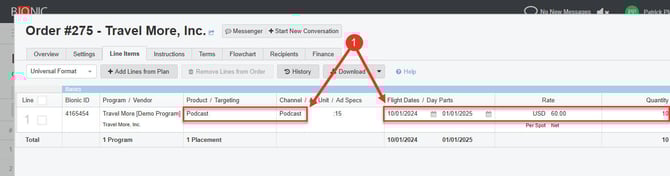
If not, you will want to fill that data in to ensure the Order can export properly to Workamajig.
Here is how: Build Out Placements
Review Workamajig Export Errors
When an order export to Workamajig (WMJ) fails, Bionic will display an error message returned from Workamajig. Bionic Org Admins have the ability to see the logs and error info.
To review the export error message:
-
Go to the Administration section.
-
Click on Integrations.
-
Select Workamajig.
-
Go to Logs.
- Find the transaction and see Error Info.

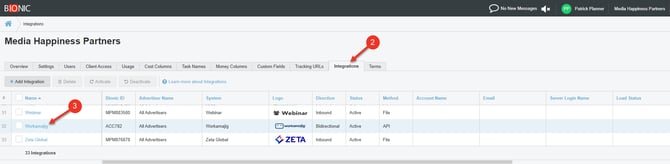
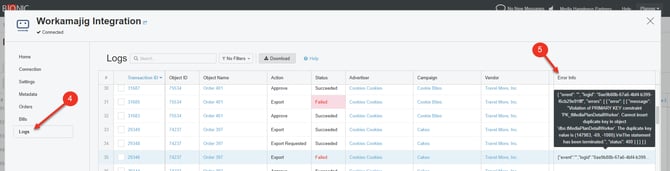
TIP: If you have email notifications set to receive for Workamajig, there will be a link in the email directing you to the error logs. This can be updated by an Org Admin under the Settings in Workamajig Admin.
Common Workamajig Export Errors
If an order fails to export, you may see an error message returned from Workamajig (WMJ). These messages may appear technical, but they generally indicate a specific issue with the order or line item data.
The examples below explain what these errors mean and how they can typically be resolved:
Order Link ID Cannot Be Changed
You may see an error similar to the following:
"message":"An OrderLinkID on an existing Order Detail line cannot be changed.","status":400
This error usually occurs when a line item that was already exported to Workamajig is later moved to a different order in Bionic.
For example, an order may have originally been exported to Workamajig with certain line items. If that order is later revoked or unapproved in Bionic, and one of those line items is moved to a new order, Workamajig still recognizes that line item as belonging to the original order.
When the new order is exported, Workamajig prevents the line item from being assigned to a different order.
What to do
-
Locate the line item that was previously exported.
-
In Workamajig, take action on the corresponding order line item.
-
Return to Bionic and re-attempt the order export.(if applicable)
Duplicate Primary Key Error
You may see an error similar to the following:
"message":"Violation of PRIMARY KEY constraint 'PK_tMediaPlanDetailWorker'. Cannot insert duplicate key..."This error originates from Workamajig and indicates that a record with the same identifier already exists in Workamajig.
Because this error originates in Workamajig, you will want to contact Workamajig Support to resolve the duplicate record before attempting the export again. Bionic Customer Support can help in connecting you with Workamajig Support.
NOTE: If you experience any errors when exporting Orders, refer to the help article: Why did my bill fail to export to Workamajig?
Re-attempt Order Export
Once you have added or updated any Workamajig IDs and/or plan line data, you will want to re-attempt order export. You can do so in two ways:
- Manually Export an Order - Here you can select which order(s) you'd like to re-export.
- Update an Exported Order - In this process, you will have WMJ re-attempt the export by revoking and re-approving the order.
NOTE: If you are still experiencing issues, please contact Bionic Customer Support: Get Help With Bionic for Agencies.